Voice dictation on Omarchy: Glazey is here

Glazey started as a Mac menu-bar app. Today it brings voice dictation to Linux, starting with Omarchy, the Arch and Hyprland setup from DHH. Same idea, same backend, built to feel at home on your desktop: hold a key, talk, let go, and clean text lands in whatever window has focus.
Install Glazey on Omarchy with one command
The Omarchy install page has the same command if you want to copy it from there.
curl -fsSL https://glazey.ai/install.sh | bashYou need Omarchy on an x86_64 machine. The installer puts everything under your home directory. The only time it asks for sudo is if a runtime package is missing, and on a stock Omarchy install there usually isn’t one.
It also sets up the pieces that make Glazey part of the desktop: the ALT + SPACE bind, the Glazey icon in your bar, and a desktop entry.
Sign in from the bar
Click the Glazey icon in your bar and pick Sign in with Glazey. Your browser opens, you sign in, and you are on the free tier: 2,000 words a week, no card.
Hold ALT + SPACE and speak
Click into any text field. A terminal, a browser, your editor, a chat window. Hold ALT + SPACE, say what you want to write, and let go. The cleaned-up text is typed in for you.
Talk the way you normally talk. You do not need to say punctuation out loud, and the ums and false starts get cleaned up on the way.
A small overlay shows that Glazey is listening while you hold the key. It picks up your current Omarchy theme’s colors, so it matches the rest of your desktop. If you would rather not see it, switch HUD off in the menu. I personally love the retro CRT vibes of this one!

Everything else lives in the bar menu
Click the Glazey icon again and you get one row per setting, each showing its current value:
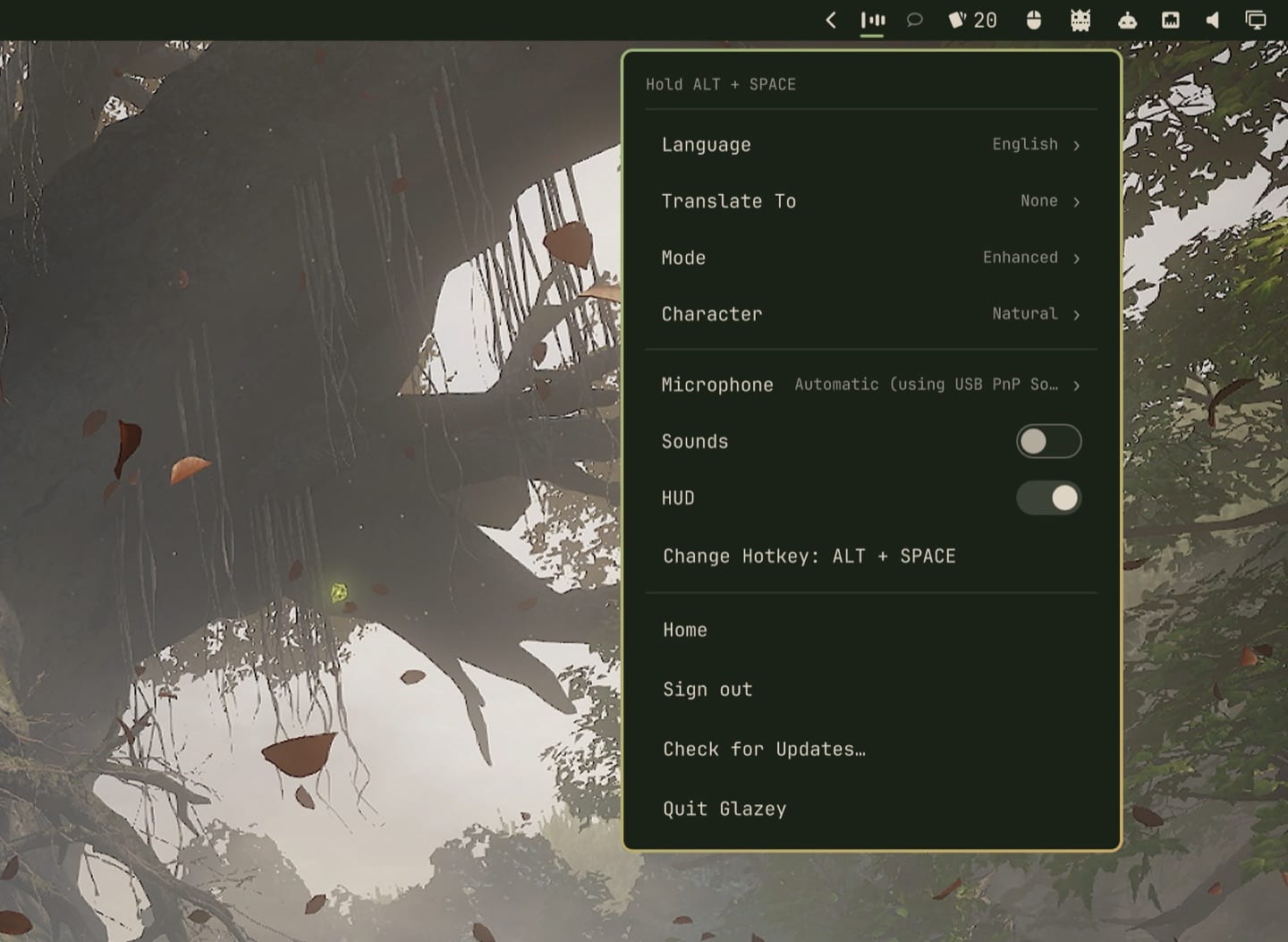
- Language. Let Glazey detect the language from your voice, or have it follow your keyboard layout. If you write in one language, following the keyboard is the most accurate option: Glazey never has to guess, so even a three-word message comes out right. Here are all the supported languages.
- Translate To. Speak in one language and have Glazey type in another.
- Mode. Enhanced cleans up what you said. Raw gives you a word-for-word transcript.
- Character. Pick a tone for the cleanup. You create characters in the web app and choose between them here.
- Microphone, Sounds and HUD. Which mic to use, and whether you get sound and visual feedback.
- Change Hotkey. If ALT + SPACE is taken, pick something else. Glazey checks your Hyprland binds and tells you if the combination you chose is already in use.
Omakase, like the rest of Omarchy
Omarchy’s whole pitch is omakase: the chef picks, and you get a setup that works the moment it’s installed. We tried to build Glazey for Omarchy the same way.
The choices are already made. The installer binds ALT + SPACE, adds the icon to your bar and registers the sign-in link, so there’s no config file to write. Out of the box you get Enhanced mode, sounds and the overlay on, and the microphone set to automatic. Language detection starts from the keyboard layouts you already use, so the languages you type in are the ones it listens for.
It looks like it came with the desktop. The bar icon is drawn in your bar’s own color, like every other glyph up there, and switches to the urgent color while you’re recording. The overlay reads your Omarchy theme and follows it live: switch themes and Glazey switches with you, no restart.
It works from the keyboard. The bar menu is part of the Omarchy shell, so it works the way the rest of it does: vim keys to move, Escape to step back a level. The language lists are type-to-search, right inside the menu.
The models are our call, not yours. Every recording goes through more than one model: one hears you while you’re still talking, another cleans up what you said or translates it. Glazey decides which ones run, and when. If the live transcription stumbles, your recording goes to a backup on its own. If the cleanup step fails, you still get your words, just unpolished. And when a better model comes along, we switch to it on our side, with no update for you to install. You won’t find a model picker either. Choosing the right models is our job, so you can get on with yours.
Privacy, network and updates
It only listens while you hold the key. A voice detector runs on your machine, so silence and room noise before you start talking never leave it.
It needs a network connection. Speech to text and cleanup run in the cloud. Our privacy policy covers what happens to your recordings. That is how a small app stays this accurate without spinning up your fans.
Updates arrive in the app. When a new version is ready, the menu offers to restart into it. Every update is signature-checked before it installs. You never run the install command again.
If the icon doesn’t show up
Restart the bar. The installer does this for you, but if it couldn’t, run:
omarchy-restart-shellLogging out and back in works too. If ALT + SPACE does nothing, another bind may own it: use Change Hotkey in the menu to pick a free combination.
Tell us how it goes
This is the first Linux release, and Omarchy is the only distro we support for now. If something feels off, or you want Glazey on another setup, email us or vote on the wishlist.